
About JUPAS Online Application System
Technical Problems in Using the JUPAS Online Application System
This may occur if the browser is blocking cookies required by the JUPAS Online Application System.
-
Ensure that cookies are enabled in your browser.
-
Allow cookies for the JUPAS OAS.
-
If you are using private/incognito browsing mode, switch to a regular browser window.
-
Close all browser windows, reopen the browser, and sign in again.
Where possible, applicants should allow cookies for the JUPAS Online Application System only, rather than changing the browser's settings for all websites
-
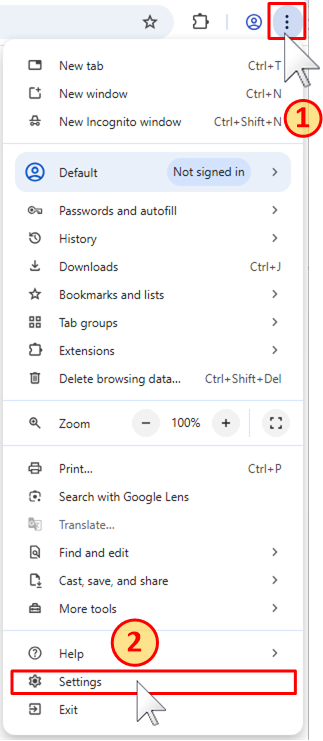
Open Customise and Control Google Chrome
-
Select Settings
-
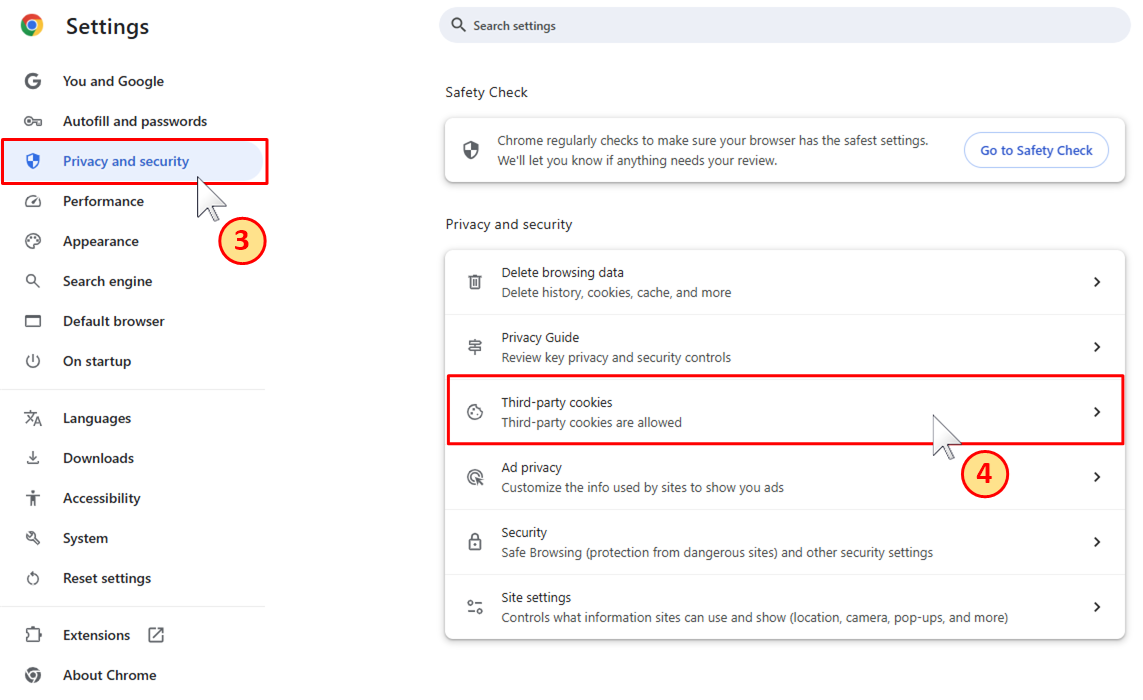
Select Privacy and security
-
Select Third-party cookies
-
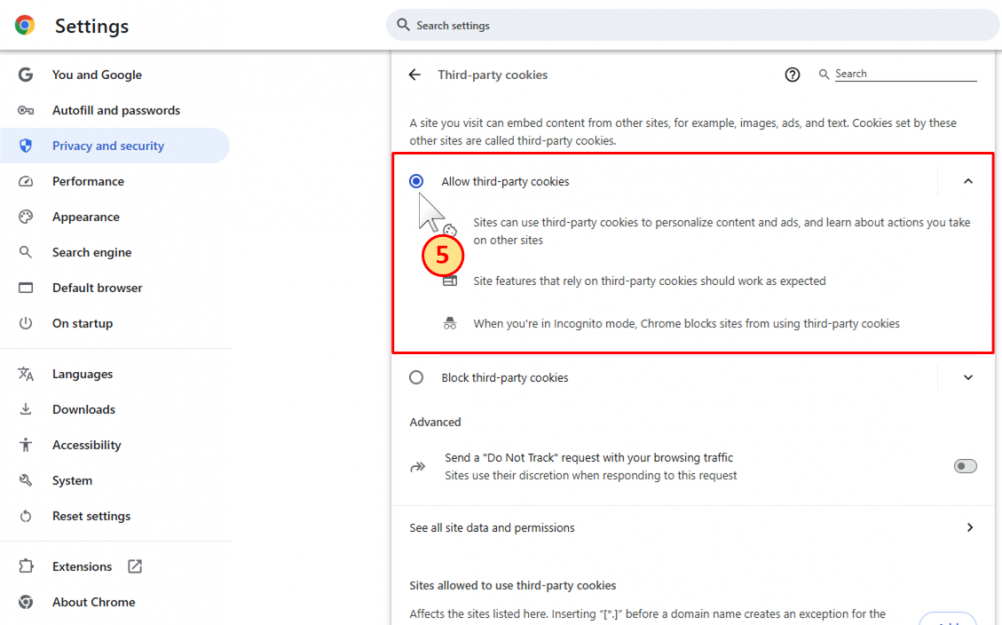
Add the JUPAS Online Application System under Sites allowed to use third-party cookies
-
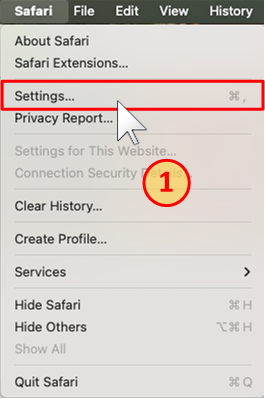
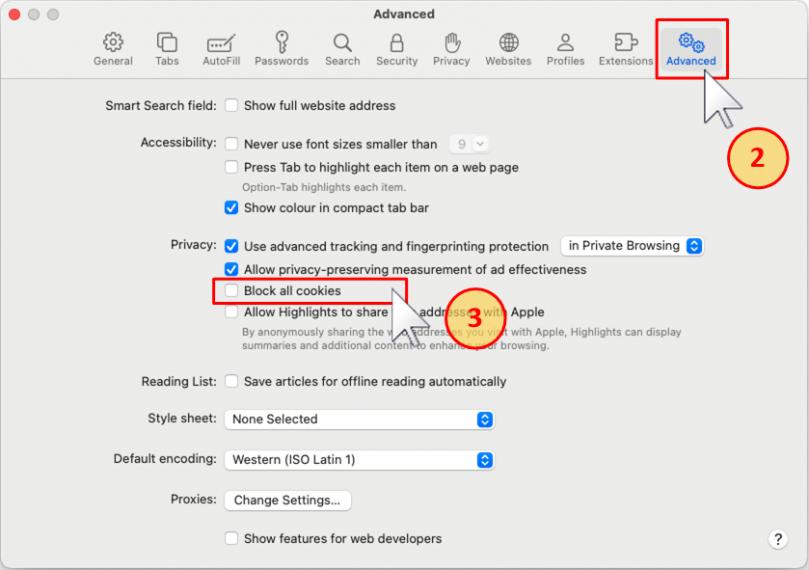
From the Safari menu, select Settings.
-
Select Advanced
-
Ensure that Block all cookies is turned off
-
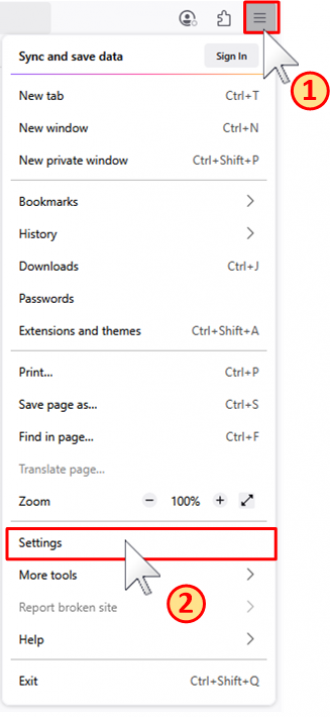
Open the Application Menu
-
Select Settings
-
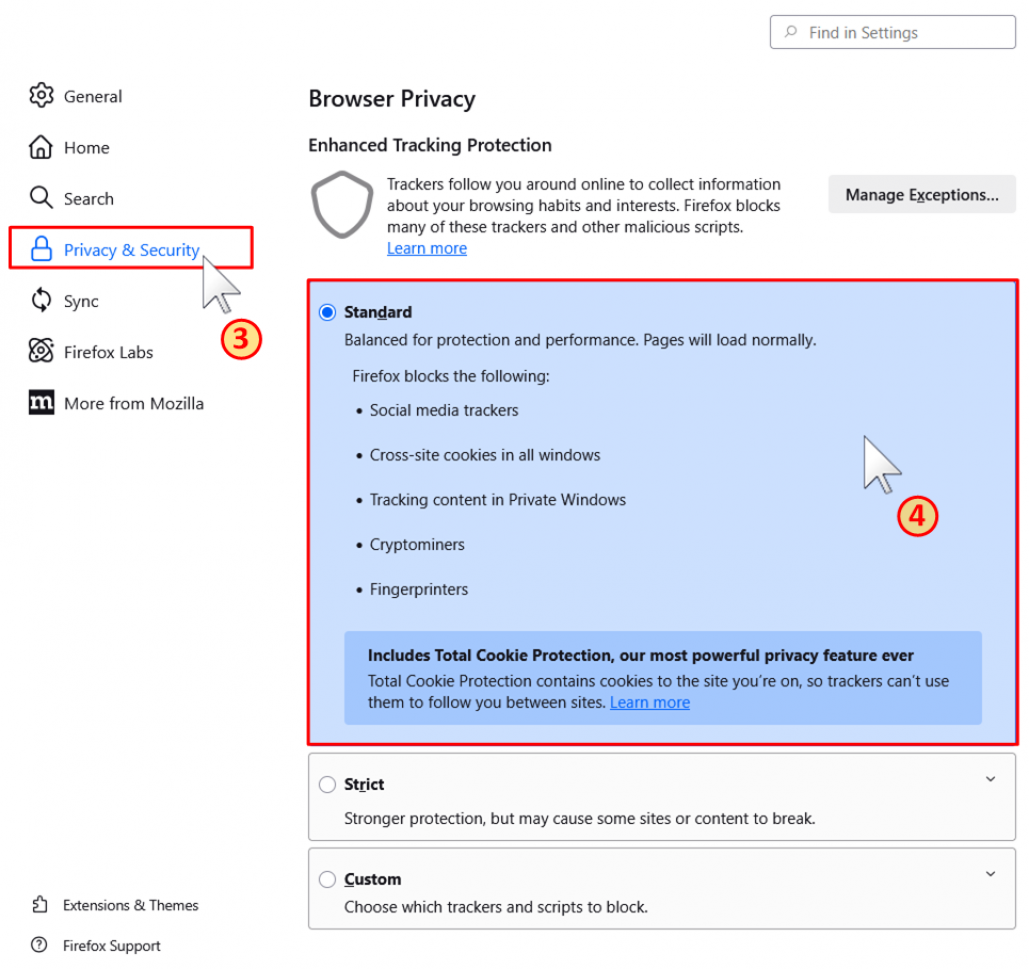
Select Privacy, search, and services
-
Select Cookies
-
Add the JUPAS Online Application System to the list of sites allowed to save cookies.
-
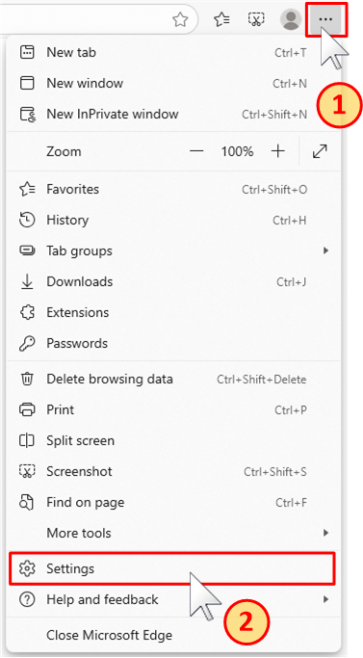
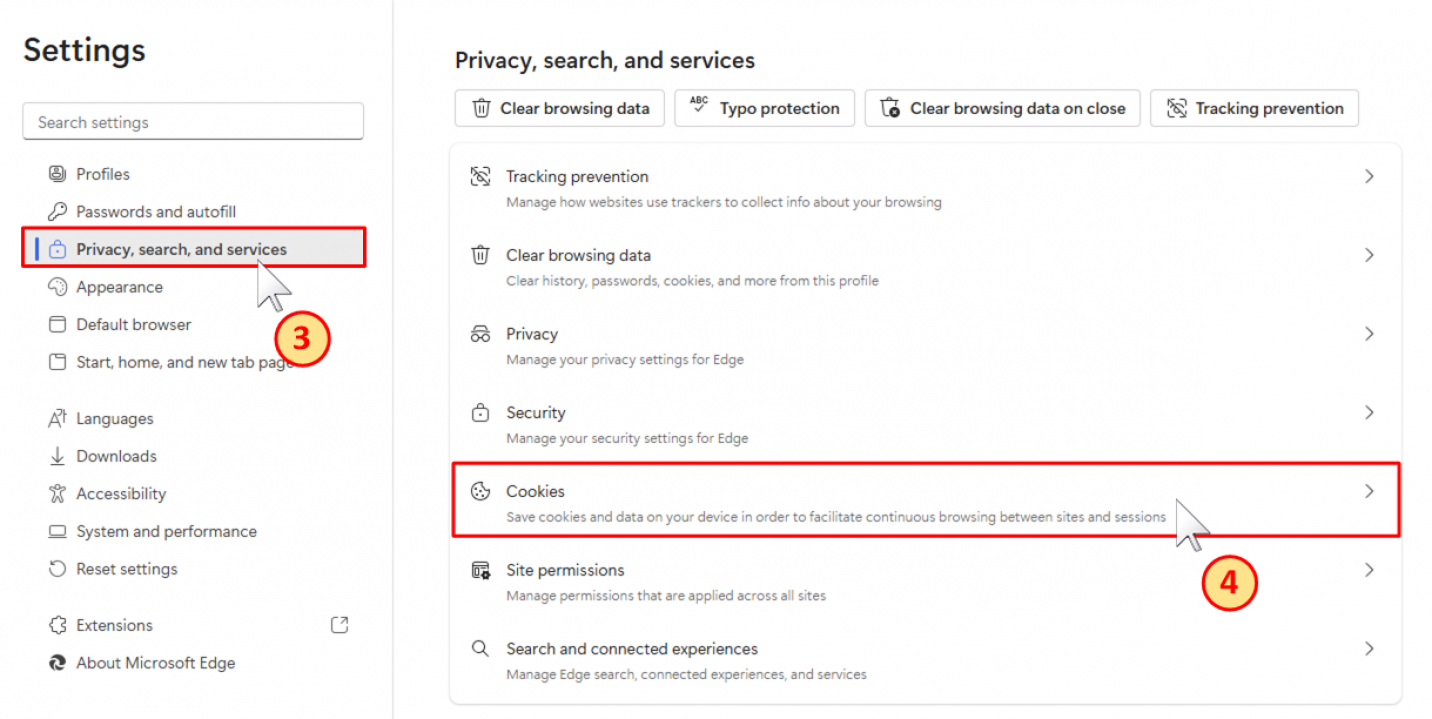
Choose Settings and more
-
Click Settings
-
Click Privacy, search, and services
-
Click Cookies
-
Turn off Block third-party cookies
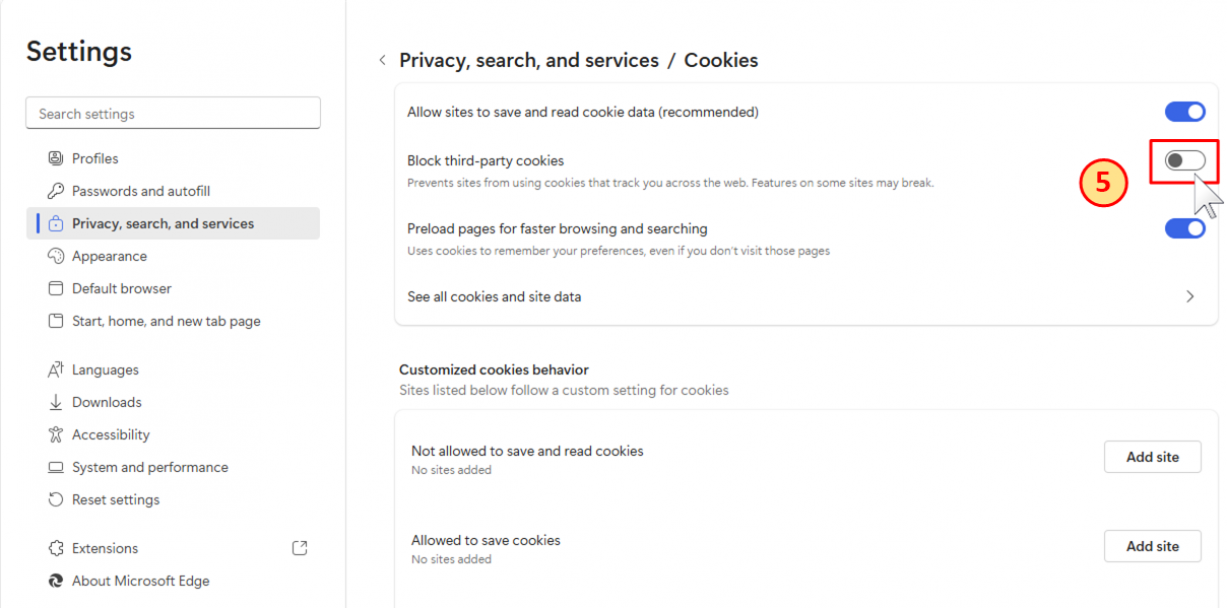
Browser settings and menu names may vary according to the browser version and device used.
NO. ONLY one active log-in session is supported for each JUPAS account.
Applicants should NOT log in to the same JUPAS account at the same time using:
-
More than one device;
-
More than one web browser; or
-
More than one tab or window in the same web browser.
Applicants should close all other active JUPAS sessions before logging in and use only one browser or tab or window when entering or submitting information.
Simultaneous logins may result in information being overwritten, recorded incorrectly or lost. Applicants are responsible for any loss or inaccuracy of information resulting from their failure to follow the above instructions.